

Accessing your CVS paystub is simple once you know which portal to use. Depending on your employment status, you can view your CVS paystub through the Colleague Zone, Workday, or the CVS Alumni Zone. Each option requires your employee ID and password. If you’ve already left CVS, you may be issued temporary login credentials by email or may need to reach out to HR for help.
Your CVS pay stub plays a key role in understanding your earnings, deductions, and taxes for each pay period. Employees rely on these records for tax filing, proof of income, loan applications, financial management, and personal documentation. Some workers even recreate their pay stubs through secure tools like the PHCWorkHub generator to maintain organized, long-term records.
Below, you’ll find everything you need to know about accessing CVS pay stubs as a current or former employee—plus what your paystub includes and how to troubleshoot common login issues.
Understanding Your CVS Paystub
A CVS paystub outlines your gross pay, deductions, taxes, and net earnings for a specific pay period. Whether you’re hourly or salaried, this document gives a full snapshot of what you earned and what was withheld.
Here’s what you’ll typically see on your paystub:
Employer & Employee Details
At the top of your CVS paystub, you’ll find your:
- Full name
- Employee ID number
- Last four digits of your SSN
- Address
- Filing status (sometimes included)
- CVS employer information
You’ll also see the pay period start and end dates, along with the pay date.
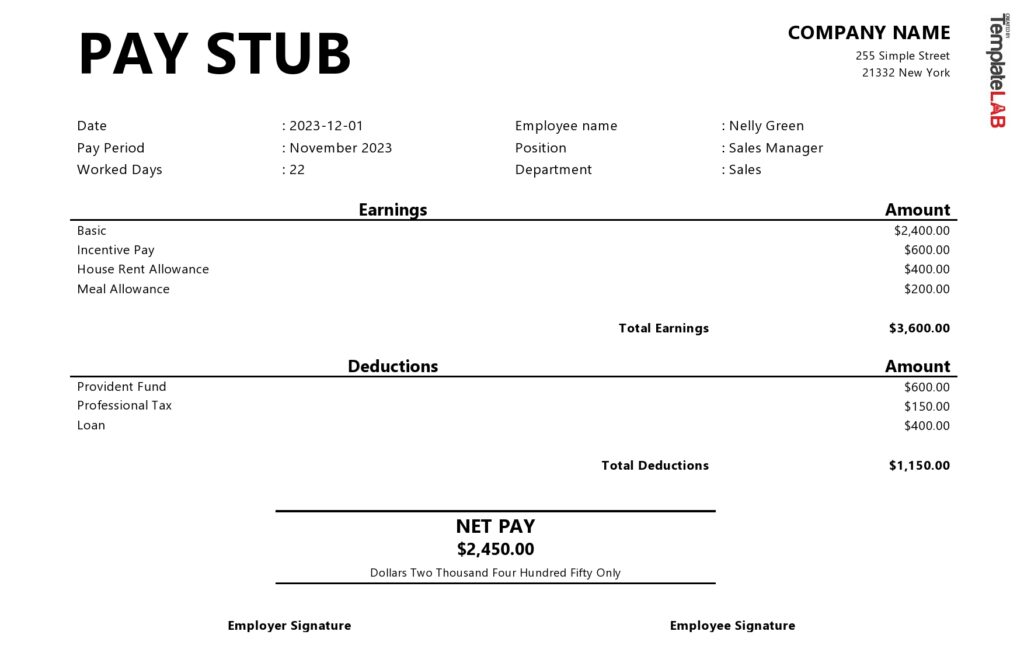
Earnings Section
This section lists what you earned before any deductions. It typically includes:
- Regular wages
- Overtime pay (if applicable)
- Bonus earnings
- Commission or incentive pay
Your gross pay is the total amount earned before taxes and benefits are deducted.
Taxes & Deductions
This category shows everything withheld from your paycheck, including:
- Federal and state income tax
- Social Security and Medicare (FICA)
- Health, dental, and vision premiums
- Retirement plan contributions
- Other voluntary or mandatory deductions
Both pre-tax and post-tax deductions appear here, along with the amounts taken out for each category.
Net Pay
Net pay is the amount CVS deposits into your bank account after all deductions. This is your take-home pay.
Year-to-Date (YTD) Summary
Your YTD totals help track your financial picture for the entire year, including:
- Total gross earnings
- Total taxes withheld
- Total deductions
- Total net pay earned so far
How Current CVS Employees Can Access Their Paystubs
Active CVS employees, including MinuteClinic staff, generally use the Workday portal or the Enterprise Login page. Older login pages, like the MyHR Colleague Zone, have been replaced or redirected.
Main portals used by current CVS staff:
- Colleague Zone (redirects to Workday)
- CVS Workday login
- Enterprise Login portal
Here’s how to access your paystub if you’re still employed with CVS:
1. Log In to the Correct CVS Portal
Go to the Workday login page or Colleague Zone and sign in using:
- Your employee ID
- Password
- Or your CVS-issued username/email
Some employees may also be asked to complete two-factor authentication.
You can also access the paystub portal through:
- The login icon on the CVS employee website
- HR portal shortcuts
- myReports system links
2. Open the Payroll or Pay Section
Your Workday dashboard will include tabs like “Pay,” “Payroll,” “My Pay,” or “Compensation & Benefits.”
Select the appropriate section to view your most recent or past paystubs.
Pay statements are arranged by date—the newest one appears first.
3. Download or Print Your CVS Paystub
When you click a pay period, your paystub opens as a downloadable PDF.
You can:
- Save it to your device
- Print it for your records
- Store it in organized folders or cloud storage
You can also update your payroll preferences, including direct deposit information, contact details, and tax forms.
If you ever need a personal copy of your paystub quickly, you can also recreate it using PHCWorkHub’s paystub generator, which gives you a clean, accurate PDF within minutes.
How Former CVS Employees Can Access Their Paystubs
Once you leave CVS, your Workday access may end. Former employees must use the CVS Alumni Zone, which replaces the old MyHR login page.
Within 24–48 hours of your final workday, CVS sends two emails to your personal email address:
- One with your username
- One with a temporary password
These give you access to your Alumni Zone account to download paystubs.
If you never receive the emails, or the credentials don’t work, contact the CVS HR Service Center for help. They may request information such as:
- Your name
- Employee ID
- Last four digits of SSN
- Dates of employment
Your pay stubs can then be emailed after your identity is verified.
Common CVS Paystub Login Issues & Fixes
Employees often run into login or access issues. Here are the most common problems and how to resolve them:
Forgotten Password
Click “Forgot Password” on the login page to reset it.
You’ll receive a link via your registered email.
If the email is outdated or inaccessible, contact CVS Customer Care at:
1-888-607-4CVS (4287)

Locked Out After Too Many Attempts
Entering the wrong password repeatedly can temporarily lock your account.
Wait 15–30 minutes and try again or call support to unlock your profile.
Missing Paystubs
Paystubs are usually uploaded 1–2 business days before payday.
If a stub is missing:
- Confirm the correct pay period
- Check for delays due to holidays
- Review the payroll schedule
- Contact the payroll team if it still hasn’t posted
MinuteClinic and retail employees can call 1-866-528-7272, while corporate staff should call 1-855-280-4872.
Always verify phone numbers through official CVS HR pages.
Final Thoughts
Accessing your CVS paystub is straightforward whether you’re a current or former employee—as long as you know which portal fits your situation. Keep your login information secure, update your personal details regularly, and review your paystubs routinely to ensure everything is accurate.
If you ever need a clean, professional copy of your paystub—or want to maintain organized personal records—you can generate accurate, downloadable paystubs in minutes using PHCWorkHub’s paystub generator.